 vardenis
Password managers: why and how to use one
A password manager is one of the most effective security improvements you can make, and good options exist at every price, including free.
The problem: password reuse
When a website is breached, attackers try the leaked email and password combinations on other sites. This is called credential stuffing. If you use the same password everywhere, one breach can expose your email, shopping and even banking accounts.
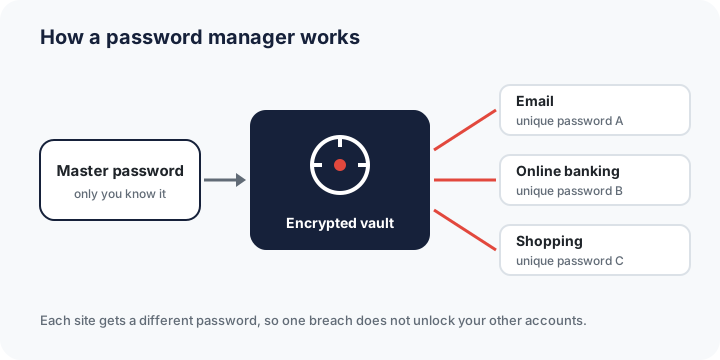
How a password manager works
A password manager keeps your logins in an encrypted vault unlocked by one master password (and ideally a second factor). Reputable managers encrypt the vault on your device, so the provider cannot read your passwords. The manager generates long random passwords and fills them in automatically, so you don’t have to remember them.
Types of password manager
| Type | Examples of where you find it | Considerations |
|---|---|---|
| Built into browser or operating system | Browser password managers, Apple Passwords / iCloud Keychain, Google Password Manager | Free and convenient. Works best if you stay within one ecosystem. |
| Standalone service | Dedicated password manager apps | Works across browsers and platforms, often with secure sharing. Usually a subscription. |
| Bundled with a security suite | Included in some antivirus plans | One bill. Check export options in case you change suite later. |
| Offline / self-managed | Local vault files | Full control, but you are responsible for backups and syncing. |
Setting one up safely
- Choose a long master passphrase, for example several random words, that you don’t use anywhere else.
- Turn on multi-factor authentication for the password manager account.
- Set up and store the recovery method (recovery code or emergency kit) somewhere safe and offline.
- Start with your most important accounts: email, banking, then everything else. Change reused passwords as you go.
- Consider passkeys where websites offer them. They replace passwords with cryptographic keys that can’t be phished.
Common worries
“Isn’t it putting all my eggs in one basket?” In practice, a well-protected vault with unique passwords is far safer than reusing a few memorable passwords, which is what most people do without a manager. Protect the vault with a strong passphrase and MFA.
This guide contains no partner links. It reflects general good practice as of 5 October 2026. For product-specific details, the vendor’s own documentation prevails. Illustrations are original works by vardenis.online. Corrections: info@vardenis.online.
Sources
- UK National Cyber Security Centre, “Password managers: using browsers and apps to save passwords”. ncsc.gov.uk
- ENISA, cyber hygiene. enisa.europa.eu
- FIDO Alliance, passkeys. fidoalliance.org
- Have I Been Pwned. haveibeenpwned.com